


To check if your master has too much compression, loudness-match it against a professional reference track and flip between the two. If the reference still sounds bigger and punchier at the same level, yours is squashed.
Once the levels match, check three things: the gain reduction meter should get back to zero between beats, your chorus or drop should still hit harder than your verse, and your PSR (the gap between peak level and short-term loudness) should sit close to your reference.
At Mastering The Mix we measure this live with LEVELS, whose dynamic range display turns red when a master is too squashed for the preset you've chosen. Then we compare against the reference in REFERENCE 3 and check the bounced file in EXPOSE 2. Below you'll find starting settings that keep you out of trouble, the full check step by step, and how to fix a master that's already squashed.
1The best starting settings for mastering compression
| Setting | Starting point | Why |
|---|---|---|
| Compressor type | Opto, or an opto-style mode | Slow, musical movement that suits a full mix |
| Threshold | Set for 2 to 3 dB of gain reduction | Keeps the compression transparent |
| Ratio | 1.2:1 to 2:1 | Gentle enough to glue without squashing |
| Attack | 20 to 50 ms | Lets the transients through |
| Release | Around 100 to 200 ms, timed to the track | Gets back to zero just before the next beat |
| Knee | Soft | Brings the compression in gradually and smoothly |
Treat these as a starting point. Set them, then run the checks below to make sure you haven't gone too far. Section 7 explains what each control does.
2How to check if your master has too much compression
Your ears are the final judge, but they adapt fast, and louder always sounds better. Work through these checks in order and you'll know for sure.
1. Loudness-match it against a reference
Load a professional track in your genre and match its loudness to your master. By hand, measure the short-term LUFS of both choruses and turn the reference down by the difference. REFERENCE 3 level-matches them for you. Now flip between the two. If the reference still hits harder, sounds bigger and has more snap at the same loudness, your master is more squashed than it should be.

REFERENCE 3's Masterscope also flags overcompression by comparing your dynamics with the reference you've loaded, so you can see when you've gone further than the records you're aiming for. More on this in How to Use Reference Tracks.
2. Bypass the compressor at the same level
Use make-up gain so the compressed and bypassed versions are equally loud, then switch between them. If the compressed version only sounds better when it's louder, it isn't helping.
3. Watch the gain reduction meter
On a mastering compressor, 2 to 3 dB of gain reduction on the loudest hits is a transparent place to sit. Movement matters just as much. Mastering engineer Ian Shepherd's rule of thumb is that the meter should get back to zero several times per bar. If it hovers at constant reduction and never recovers, the threshold is too low or the release is too long.
To time the release, one beat lasts 60,000 ÷ BPM milliseconds, so 500 ms at 120 BPM. For the meter to reach zero before the next kick, your release has to be shorter than that. Some engineers prefer a release slightly longer than a beat for smoother, constant glue. Both can work. The meter shows you which one you're doing.
One catch: the meter only shows that one compressor. Your mix bus compressor and limiter add to it, so measure the output of the whole chain too.
4. Measure your PSR
PSR (peak to short-term loudness ratio) is the gap between your peak level and your short-term loudness. The lower the number, the less dynamic range is left. It's the most direct way to put a number on "squashed".

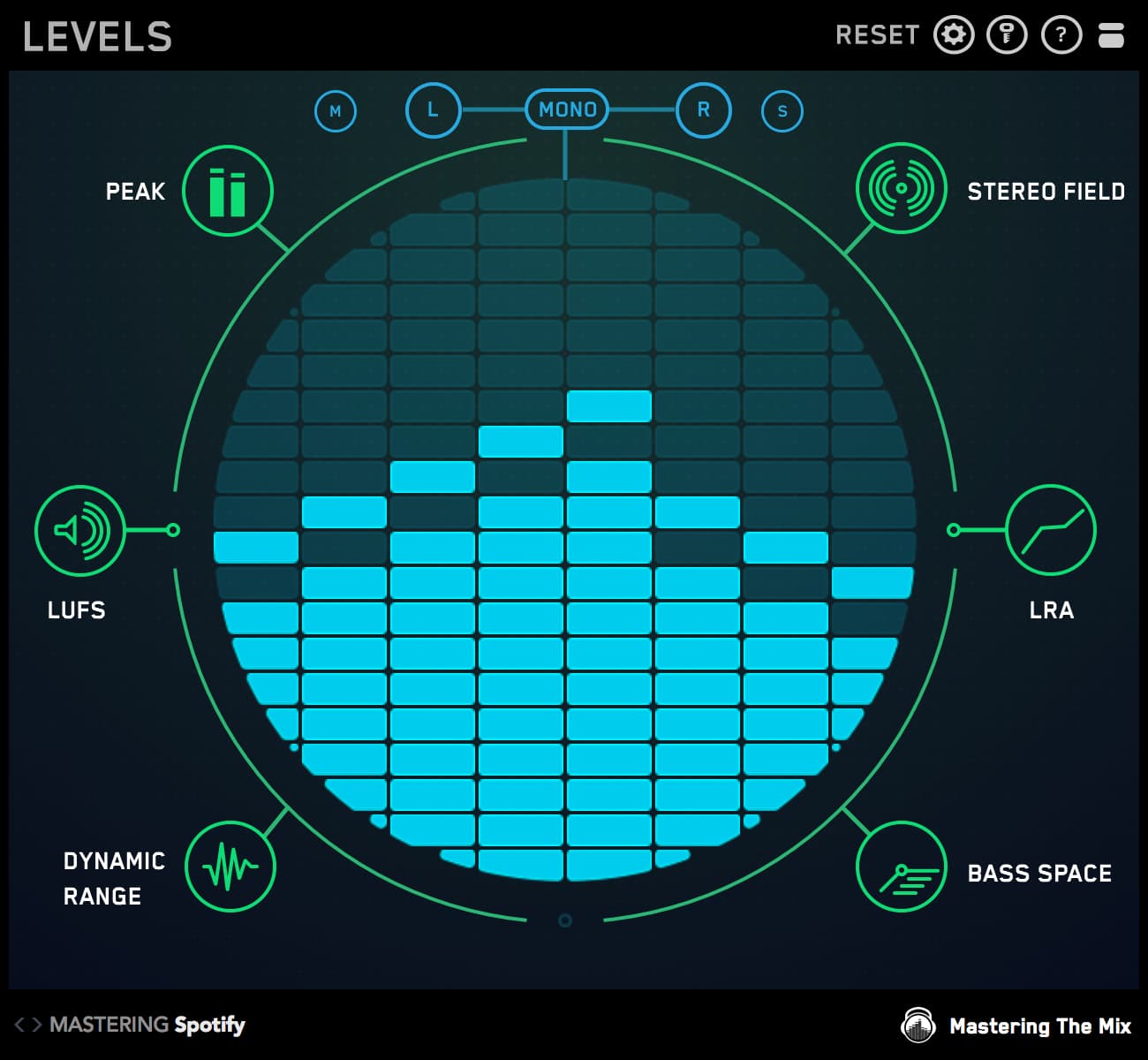
LEVELS measures it live on your master. Its dynamic range display glows green when you're comfortably above the threshold for your chosen preset, turns orange as you approach it, and red when you breach it. The reading isn't tied to how loud the track is, so an over-compressed master turns red even at a quiet level. Each preset has its own threshold, so pick the one that matches where your music will be heard.
5. Check the loudness range
Loudness range (LRA, measured in LU) shows how much the level moves between your verses, choruses and breakdowns across the whole track. Over-compression shrinks it. In LEVELS, the loudness range icon turns red if your track stays under 3 LU for more than 30 seconds. A range of 6 to 12 LU shows a considerable difference in loudness between sections.

6. Look at the waveform
Bounce the master and zoom out. A healthy master still has peaks and dips. An over-compressed one looks like a solid brick with a flat top. It's a quick visual clue, so confirm it with your ears and your meters.
7. Listen for the symptoms
- The kick and snare lose their snap.
- The chorus or drop stops lifting above the verse.
- The whole mix ducks every time the kick hits (pumping).
- It feels flat and harsh at the same time, and gets tiring fast.
- You want to stop playback before the end of the song.
8. Check the bounce in EXPOSE 2
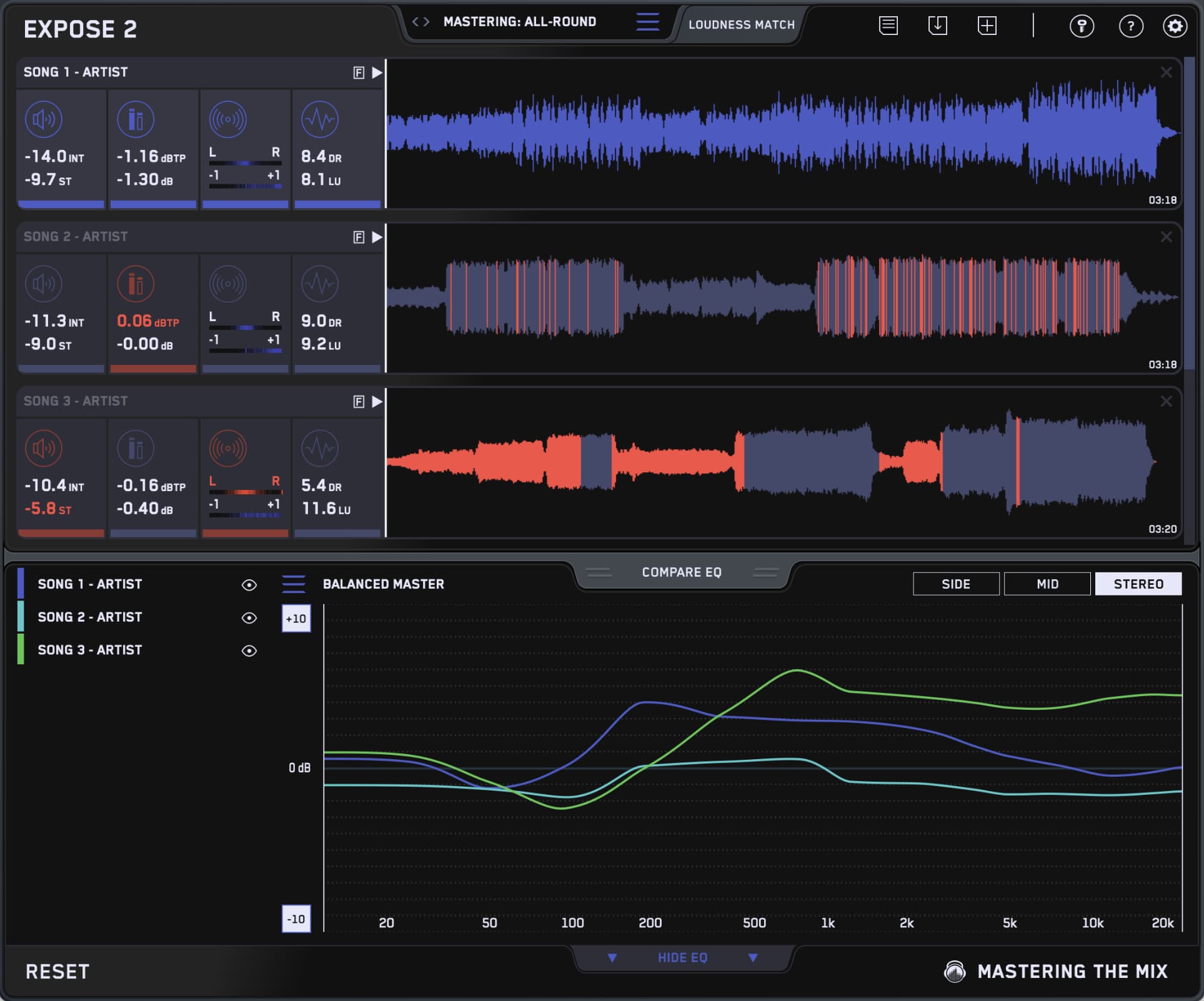
Drag the final file into EXPOSE 2 and pick where it's going, such as Spotify or YouTube. If the dynamics section turns red, click it and EXPOSE 2 highlights exactly where on the waveform the problem is, with feedback on how to fix it. It's the last check before you upload.

3Tools for checking over-compression
| Tool | What it shows about compression | Best for | Price |
|---|---|---|---|
| Your compressor's gain reduction meter | How hard that one compressor is working, and whether it recovers between beats | A quick check while you set it up | Built in |
| Youlean Loudness Meter 2 | PSR (realtime dynamics), PLR, loudness range, LUFS and true peak. Pro adds a dynamics graph and custom alerts | Clear numbers at no cost | Free, Pro paid |
| MeldaProduction MLoudnessAnalyzer | Peak, momentary, short-term and integrated loudness, plus loudness range | Free loudness and LRA readings | Free |
| iZotope Insight 2 | LUFS, loudness range, true peak and a loudness history graph, alongside spectrum and stereo meters | A full metering suite for music and post | Paid |
| LEVELS Mastering The Mix |
Live PSR reading that goes green, orange, then red against your preset's threshold. Loudness range turns red under 3 LU for 30 seconds. Also LUFS, true peak, stereo and bass | Knowing the moment you've squashed it while mastering | Paid, free trial |
| REFERENCE 3 Mastering The Mix |
Level-matched A/B with your reference. Masterscope flags overcompression compared with that reference, and Match % includes dynamics | Seeing if you're more squashed than the records you're aiming for | Paid, free trial |
| EXPOSE 2 Mastering The Mix |
Dynamic range and loudness range of the bounced file, with problems marked on the waveform and feedback on fixing them | The final check before release | Paid, free trial |
Youlean's free meter is excellent if you just want the numbers. LEVELS, REFERENCE 3 and EXPOSE 2 go a step further: they tell you when the numbers become a problem for where your music is going, compare you with the records you're aiming for, and check the final file. Every Mastering The Mix plugin has a free trial, so run your own masters through them and trust your ears.
4What to do if your master is over-compressed
- Back off the threshold or the ratio until you're back to 2 to 3 dB of gain reduction on the loudest hits.
- Slow the attack so the transients get through.
- Time the release so the meter recovers before the next beat.
- Check upstream. The limiter or the mix bus compressor is often doing most of the squashing.
- Go back to the mix if you need to. If the mix arrived squashed, mastering can't put the dynamics back, so fix it there or bounce a version with the mix bus compressor bypassed.
5What a compressor does, and what it shouldn't do
Compressors reduce the difference between the loudest and quietest parts of the audio they process. They let you control, color and shape the dynamics of your music. They're powerful tools, but the wrong settings can suck the punch out of a track.
Using a compressor to even out audio with a large dynamic variation gives a very uneven sound. The softer parts sound unchanged and the louder parts get squashed in an unnatural way. Going back to the mix and automating a gain plugin is a much more natural way to level out big volume swings.

Once your channel has an even volume balance, you can use a compressor to thicken the sound and control the transients, taking an artistic approach rather than a corrective one.
6Why most mastering compressors are opto
Most mastering compressors use an opto circuit, which has slower movement characteristics and adds a nice pumping effect that beefs up the sound. As with all things audio, you can try different compressors and experiment with their effects. Tried and tested approaches are the go-to for many engineers for good reason, though.

Whatever you use should preserve the character of your audio's transients. Even with a charismatic compressor full of color, your goal is to musically bring out the natural dynamics of the signal.
As you tweak your settings, think about what you're trying to achieve. Are you adding character or adjusting the transients and dynamic range? How has the compression changed the relationship between the loud and soft parts? How have the transients changed? Are you slamming the audio in an obvious way?
7Setting each compression control
Threshold
Threshold sets the level at which the compressor starts reacting to the audio. If your audio peaks at -10 dB and the threshold is set to -4 dB, the compressor won't react at all. If you want it to catch only the peaks (using the same -10 dB example), set the threshold to around -13 dB. If you want to compress heavily, set the threshold low enough to react to both the loudest and quietest parts of your audio.

Ratio
Ratio sets the amount of gain reduction. The higher the ratio, the more extreme the compression. As a ballpark for mastering, 1:1 is no compression, 2:1 is light, 3:1 is moderate, 4:1 is substantial, 8:1 is very noticeable, and anything above 10:1 can sound rather slammed unless you pair it with a very light threshold. ∞:1 is limiting, where nothing goes over the set level.

Take 3:1 as an example. For every 3 dB of signal over the threshold, the compressor only lets 1 dB through. So if the signal is 6 dB over the threshold, the compressor reduces that to 2 dB.
Attack
Attack is how long the compressor takes to react to the incoming signal. With an immediate or very fast attack, the compressor catches the transients. That's useful when the transients sound a bit sharp, because it makes them blunter and therefore a bit thicker. If you want some leveling but want to keep the sharpness of the transients, go for a slower attack.

A great starting point for a mastering compressor's attack is around 20 to 50 milliseconds. That leaves enough room for short, sharp transients to poke through without being so long that the compressor doesn't react in time. Tweak from there, using your ears and reference tracks to dial in a setting that works with your music.
Release
Release is how long the compressor takes to return to a non-compressing state once the audio drops back under the threshold. A fast release stops compressing quickly. A slow release keeps working for longer. I like to set the release to work rhythmically with the music, just long enough that the compressor returns to neutral before the next hit triggers it again. For a more obvious, pumping sound, you might choose a longer release.

Knee
The knee fine-tunes how the gain reduction comes in. A soft knee applies compression gradually as the signal approaches the threshold. A hard knee applies it as soon as the audio crosses the threshold. Soft knees are usually more subtle and better suited to mastering.

Final check: the verse into the chorus
Play how the master flows from the verse into the chorus and make sure it still has a positive dynamic impact. If the compressor clamps down too hard on the first beat of the chorus, raise the threshold to reduce the compression.
8How to avoid over-compressing your master
Over-compression is an incredibly fast way to ruin a master. Squashing the transients sucks the dynamics and emotion out of a track and takes the impact out of a drop or chorus. To avoid it, dial in a low ratio of around 1.2:1 to 2:1 and a high threshold (relative to the signal) that gives only 2 or 3 dB of gain reduction. Just tickling the signal like this keeps the compression transparent and subtle. It keeps the dynamic contrast between the sections of your song, and it still glues the sounds of your mix together.
Keep the dynamic range display in LEVELS in view to make sure your master stays punchy. If the oscilloscope glows red, you may have over-compressed your track for your selected preset. A lower ratio on your compressors can bring the punch back.

9Advanced: sidechain EQ with FabFilter Pro-C 3
A compressor's sidechain EQ shapes what the compressor reacts to. The gain reduction still lands on the whole mix, so on a stereo master you're choosing which parts of the music are allowed to turn everything down. FabFilter Pro-C 3 has a six-band sidechain EQ for this. Pro-C 2 has the same idea with three bands.
1. Stop the low end pumping the master
Kick and bass carry the most energy in a mix, so they trigger a compressor more than anything else. Cutting the lows from the sidechain stops them driving the gain reduction, and the master stops ducking on every kick.
2. Tame a kick that's running the show
Boost the kick's frequencies in the sidechain instead and the compressor reacts mainly to the kick. That can stop a dominant kick overwhelming the mix. Remember the whole master ducks with it, so keep it to a dB or two. If you only want the bass to duck under the kick, that's a job for the mix, or for a multiband compressor or dynamic EQ on the master.
3. Leave the vocal alone
Cut the midrange from the sidechain so vocals and guitars don't trigger the compressor. They keep their natural dynamics and the compression stays transparent and musical.
4. Stop hi-hats and cymbals triggering it
Cut the high frequencies from the sidechain so bright cymbals and hi-hats don't set the compressor off unnecessarily. You avoid harshness and keep a smooth, balanced top end.
5. Choose between the center and the sides
Every band of Pro-C 3's sidechain EQ can be switched to mid or side. That lets you decide whether something in the center, like the vocal, or something wide, like cymbals or pads, does the triggering.

Used gently, sidechain EQ lets you decide which parts of the mix the compressor responds to, so the kick, the vocal and the top end all come through the way you want.
10What producers say about LEVELS
"LEVELS gives me confidence that my mix will translate well wherever it's heard."
"No matter who you are, or where you are in your music career LEVELS is a vital tool for every Producer/Engineer."
"LEVELS is a refreshing alternative, presenting the metering tools that are needed in today's loudness-normalized world in an affordable, easy-to-use package."
Check your own master
Good mastering compression comes down to knowing your tools and being honest about what they're doing. Start gentle, with a low ratio, a couple of dB of gain reduction, an attack that lets the transients through and a release that breathes with the track. Then check it against a reference at the same loudness.
Don't take my word for it. Download the free LEVELS trial, put it on your master bus and see if the dynamic range stays green through the chorus or drop. Every plugin also comes with a 30-day money back guarantee.
?Mastering compression FAQ
How can I check if my master has too much compression?
Loudness-match your master against a professional reference in the same genre, then compare. If the reference still sounds bigger and punchier at the same level, yours is too squashed. Back that up with three checks: the gain reduction meter should return to zero between beats, the chorus or drop should still lift above the verse, and your PSR (peak to short-term loudness) should sit close to the reference. LEVELS by Mastering The Mix turns its dynamic range display red when a master is too squashed for the chosen preset, REFERENCE 3 flags overcompression against your reference, and EXPOSE 2 checks the bounced file.
What does an over-compressed master sound like?
The kick and snare lose their snap, the chorus or drop stops lifting above the verse, and the whole track feels flat even though it is loud. You may hear pumping, where the entire mix dips every time the kick hits, and the track gets tiring quickly. A good test is whether you want to turn it off before the end.
What is PSR and how do I use it to spot over-compression?
PSR stands for peak to short-term loudness ratio. It is the gap between your peak level and your short-term LUFS, measured over about three seconds. The lower the number, the less dynamic range is left, so heavy compression and limiting pull it down. PLR is the same idea over the whole track, using integrated loudness. Rather than chasing one magic number, compare your PSR in the loudest section with references in your genre. If yours is clearly lower, you have squashed it harder than they did.
Can a limiter over-compress a master?
Yes. A limiter is a compressor with a ratio of infinity to one, so pushing it hard flattens peaks just like heavy compression does. Many over-compressed masters are really over-limited. Meters that measure the output, like the dynamic range reading in LEVELS, show the combined effect of your mix bus compressor, mastering compressor and limiter, whichever one caused it.
Does Spotify loudness normalization fix an over-compressed master?
No. Spotify turns loud masters down so tracks play back at a similar level, but turning a track down cannot restore the dynamics you removed. A squashed master ends up at the same playback level as a dynamic one, and it usually sounds smaller and less punchy next to it.
How do I fix an over-compressed master?
Raise the threshold or lower the ratio until you are back to around 2 to 3 dB of gain reduction on the loudest hits, slow the attack so transients get through, and time the release so the meter recovers before the next beat. Then check upstream, because your mix bus compressor and limiter may be doing most of the squashing. If the mix itself arrived squashed, mastering cannot put the dynamics back, so go back to the mix.
How do I avoid over-compressing my master?
Over-compression squashes transients and drains the energy from a drop or chorus. Keep the ratio low, around 1.2:1 to 2:1, and set a high enough threshold that you only get 2 to 3 dB of gain reduction. Tickling the signal like this stays transparent, preserves dynamics, and still glues the mix together.
What compressor settings should I start with when mastering?
A transparent starting point is an opto-style compressor with a soft knee, the threshold set for just 2 to 3 dB of gain reduction, a gentle ratio of 1.2:1 to 2:1, an attack of 20 to 50 ms to let transients through, and a release around 100 to 200 ms that returns to zero just before the next beat.
Do I need compression when mastering?
Not always. If the mix already has some glue from mix bus compression and the dynamics feel right, you can skip it. When you do use it, aim to feel it rather than hear it: a low ratio, a high threshold and only a couple of dB of gain reduction.
Should I use compression to fix big volume swings in a track?
Not as the first move. Compressing audio with large dynamic variation sounds uneven, leaving quiet parts untouched and squashing loud ones. It is more natural to automate a gain plugin to level the performance first, then use the compressor artistically to add character and control transients once the balance is even.
Why does an opto compressor suit mastering?
Most mastering compressors use an opto circuit, which has slower movement characteristics and adds a pleasing pumping effect that beefs up the sound. Its gentle, musical behavior makes it well suited to the subtle, transparent gain reduction you want across a full mix rather than aggressive, obvious compression.